PAS 1/3 Octave Spectrum Analyzer, Graphic Equalizer, Dolby Surround Meter
Main menu
Spectrum Analyzer pro Live
turns your computer into a modern, State-
features that go far beyond the possibilities of any stand-
An important advantage of your new analyzer software is the fact that your computer monitor is a far better means of displaying analyzer measurments than any LED or LCD bar. By making use of standard computer operations your analyzer software will store your personal settings or analyze audio data you may have previously recorded.
Correlation Meter (giving you information about the the mono compatibility of a stereo signal) you also can make easily Phase Check with this tool...
:: Here are some key features of "Spectrum Analyzer pro Live":

· Displaying in 1/3 Octave and FFT (31,2048 Bands)
· Decay settings (Display speed) for the Spectrum in the Octave Mode, the FFT Mode and one for the VU-
· Big Window (to have a full screen of the spectrum) see screen shot...
· Multi Mode Support. Switch between 4 Stereo Devices easily with the Keys.
· So you can analyze the input for Alesis ADAT, 8 Track Recording and any Multi Channel recordings...
· EQ suggestion -
· Convert Wave files to Mp3 files settings from 32 up to 320 bit/sec
· Tap Delay calculator -
· improvement to calibrate the generator output
· Sound Check without a Band
· Phase Check
:: The Basic Module
EQ suggestion -
Convert Wave files to Mp3 files settings from32 up to 320 bit/sec
Tap Delay calculator-
improvement to calibrate the generator output
:: Standard Features
Wave recording for the line in and the mic input
Mp3 player to analyze Mp3 files (Mp2, atx)
Two Peak Level Labels that give you control of the highest amplitude
Peak hold option
Generator leveling calibrated to1/100 of a dB.
Mp3/Wave Tools like:
A Normalize function for wave files, Codec to convert Mp3 back to wave files,
Split Stereo Wave file into 2 Mono files, Swap left with the right channels
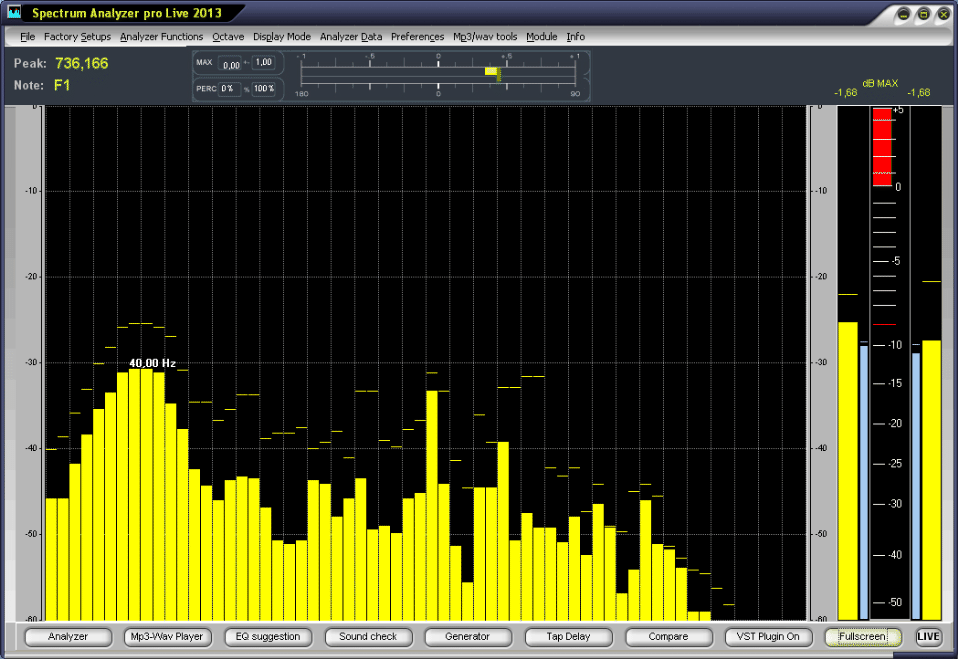

:: Correlation Meter
The Correlation Meter provides information about mutual phase-
We can not emphasize enough how important it is that your final mix is as close as possible to your intended mix. Of course you will have to spend some time with the program to learn how to read the indications of the correlation meter. Correlation with percentaged values.
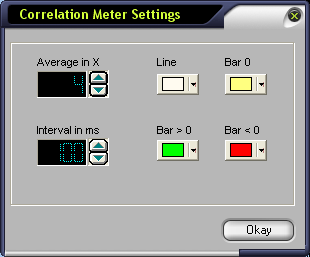
In this Settings dialogue all parameters of the correlation settings are to the user for individual attitude at the disposal.
:: AVERAGE in X : Here the time constant for the averaging of the correlation criterion is stopped. In the example shown above 6 values are averaged and spent then. With the next run the last value is then overwritten with the new. The adjustment possibilities are enough from 1 to 49. Consider thereby that high values are to be read off beautifully slowly, but fast changes of the correlation degree in the announcement are lost.
:: Interval in ms:
Here you can stop the time periods, in which the next in each case measured value is switched to the announcement.
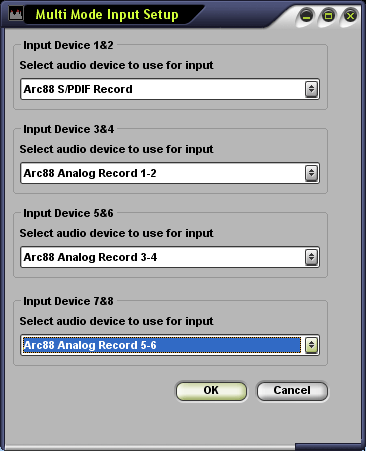
Multi Mode Support. Switch between 4 Stereo Devices easily with the Keys (NUMBER PAD1 -
NUMBER PAD1 = DispayDriver 1 & 2
NUMBER PAD2 = DispayDriver 3 & 4
NUMBER PAD3 = DispayDriver 5 & 6
NUMBER PAD4 = DispayDriver 7 & 8
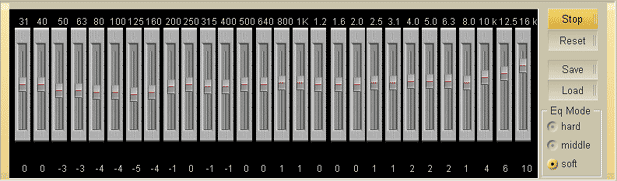
:: The EQ Suggestion Module
The Eq suggestion provides equalizer settings on a 1/3 octave equalizer that will optimize the sound under "ideal studio conditions". Eq suggestion provides settings for the Equalizer faders to make the Sound (Input) linear.
The SA will allow the user to actually observe the holes or the overlevels(highs and lows) as a function of frequency. The user may easily copy the fader settings to an actual 1/3 EQ hardware unit.
Minor adjustments may be necessary as this process does not take into account any of the natural acoustics that are inherent and unique to each studio or listening area. If the user saves the results from Eq suggestion, then loads the file into the Graphic Equalizer 2.0, the data will set up the EQ automatically.
There will be a audibly noticeable difference between the original source and the revised signal due to the equalization process.
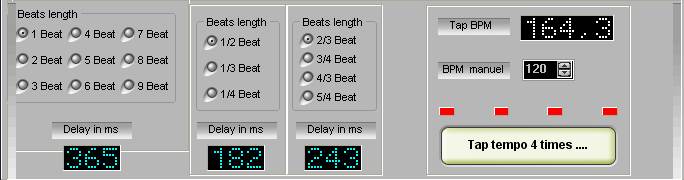
:: The Tap Delay Module
Tap Delay calculator-

:: Sound Check without a Band module
This section of the program offers the ability to make sample measurements of the frequency response of a performance area, without actually having the artists present. It may be utilized to set approximate EQ levels during the setup process. This will help reduce the typical last minute hassle of waiting for the musicians, performing a sound check, making required adjustments, redo the sound check
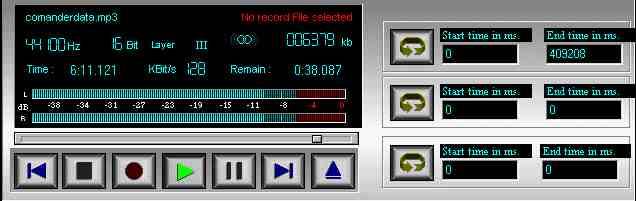
:: The Wave Player module
The Wave Player allows you the opportunity to load a pre-
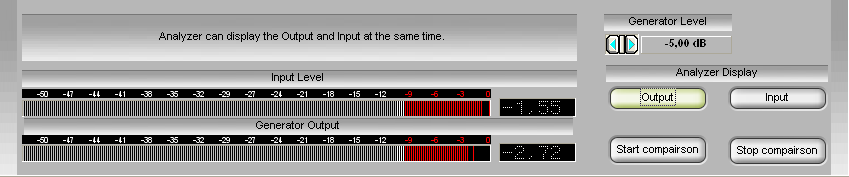
:: The Generator module
The built-
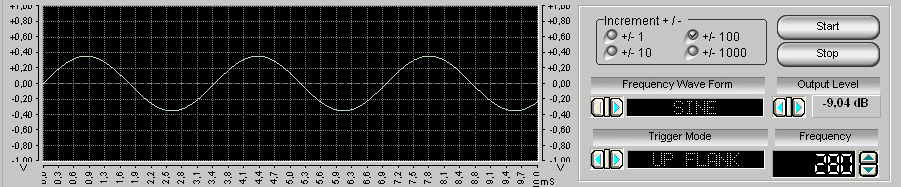
:: The Generator module
The built-
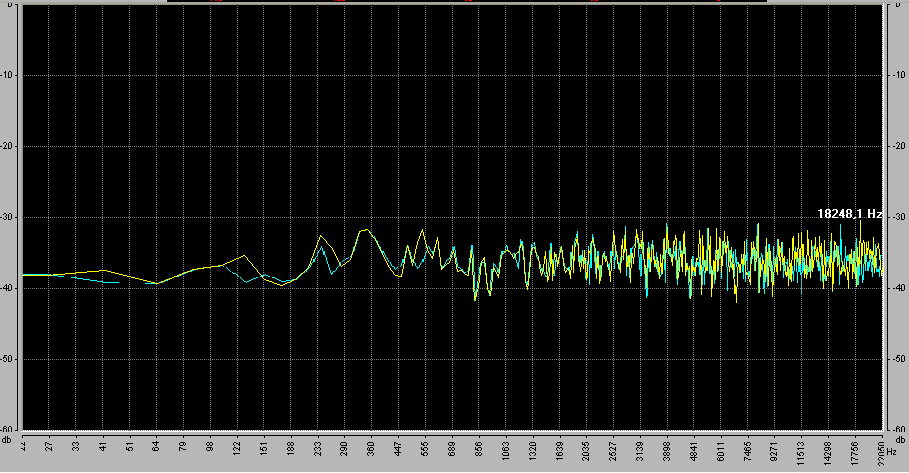
:: Background module
You can load a frozen Spectrum as Background for better comparisons.Opportunity to select three various colors to make clear the difference amplitudes.

:: Musical Notes Detector
What are the frequencies of musical notes like G and G# in k-
FREQUENZ (in hertz)= 440 × 2^( (OCTAVE -
| Note | Oktave | |||||||
|---|---|---|---|---|---|---|---|---|
| 1 | 2 | 3 | 4 | 5 | 6 | 7 | 8 | |
| C | 32,70 | 65,41 | 130,8 | 261,6 | 523,3 | 1047 | 2093 | 4186 |
| C # | 34,65 | 69,30 | 138,6 | 277,2 | 554,4 | 1109 | 2217 | 4435 |
| D | 36,71 | 73,42 | 146,8 | 293,7 | 587,3 | 1175 | 2349 | 4699 |
| D# | 38,89 | 77,78 | 155,6 | 311,1 | 622,3 | 1245 | 2489 | 4978 |
| E | 41,20 | 82,41 | 164,8 | 329,6 | 659,3 | 1319 | 2637 | 5274 |
| F | 43,65 | 87,31 | 174,6 | 349,2 | 698,5 | 1397 | 2794 | 5588 |
| F # | 46,25 | 92,50 | 185,0 | 370,0 | 740,0 | 1480 | 2960 | 5920 |
| G | 49,00 | 98,00 | 196,0 | 392,0 | 784,0 | 1568 | 3136 | 6272 |
| G# | 51,91 | 103,8 | 207,6 | 415,3 | 830,6 | 1661 | 3322 | 6645 |
| A | 55,00 | 110,0 | 220,0 | 440,0 | 880,0 | 1760 | 3520 | 7040 |
| A# | 58,27 | 116,5 | 233,1 | 466,2 | 932,3 | 1865 | 3729 | 7459 |
| B | 61,74 | 123,5 | 246,9 | 493,9 | 987,8 | 1976 | 3951 | 7902 |
What are the frequencies of musical notes like G and G# in k-
The answer to these questions is easily determined mathematically, but a bit of background should help the student use the mathematical relationships with confidence and understanding.
A piano keyboard is set up in octaves. Each octave has thirteen notes, with the thirteenth being the beginning of the next octave as well. Starting with A, an octave is A, A#, B, C, C#, D, D#, E, F, F#, G, G#, and again, A. The interval between each two successive notes is called a half-
For starters, each octave up or down represents a doubling of frequency. For example, the A above middle C on the piano is set to the standard value of 440 Hz, so the A an octave above that has a frequency of 880 Hz.
Now, the particulars. The half-
Side notes: Tuning systems cannot be treated in detail here. In short, there is a tradeoff in using equal temperament in that all harmonies are very slightly imperfect , but this method brings the overwhelming advantage over its predecessors that music may be written in any key with equal harmonic quality for each.
Bach largely popularized equal temperament and demonstrated its effectiveness with his series of pieces in all keys known as 'The Well-
Back to our original story. In this equal temperament system of tuning, the frequencies of notes on a keyboard are related by a fairly simple mathematical relationship involving the number of keys (half-
To determine the relationship between the known frequency of a note and the unknown frequency (wished to be known) of another note, multiply the known frequency by 2 raised to the power (#ofhalf-
For example, if the A above middle C is set to 440 Hz (which is standard, usually called A440), the G just below it would have a frequency of 440 Hz * 2^(-
Note (pun intended) that the equation checks out with the previous assertion that octaves have factors of 2 differences in frequencies. Recall that there are twelve half-
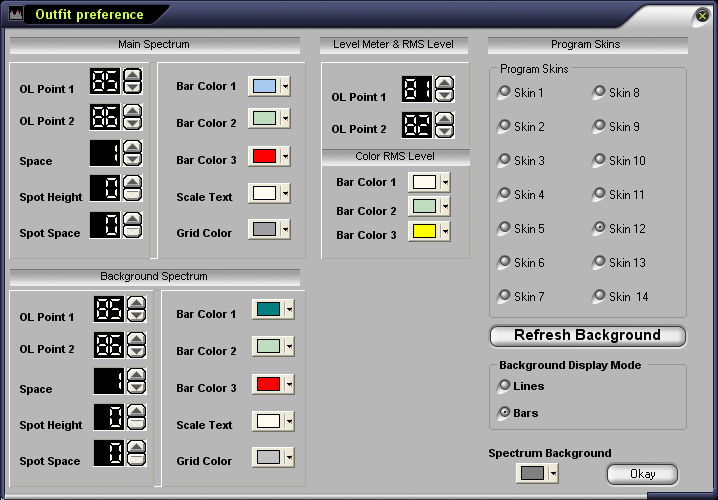
:: Skin module
You can choose between 14 different skins, to make you personal Spectrum Anlayzer outfit. Check in the Main Menu the Preference item, there you find "Spectrum Outfit". When this dialog comes up you can choose between 14 different skins. ALL the buttons and the form style change automatically.
:: Short Key's
F1 = FFt Display
F2 = 1/3 Octave
F3 = 1/6 Octave
F4 = 1/12 Octave
F5 = 1/24 Octave
Space = Start or Stops the Line In displaying
NUMBER PAD 1 = DispayDriver 1 & 2
NUMBER PAD 2 = DispayDriver 3 & 4
NUMBER PAD 3 = DispayDriver 5 & 6
NUMBER PAD 4 = DispayDriver 7 & 8
NUMBER PAD + = Fullscreen
NUMBER PAD -
Provides office( PDF, Word, Excel, PowerPoint, AutoCAD etc), video( DVD, VCD, SVCD etc), audio( MP3, WAV, MIDI etc), image( JPG, GIF, TIF, BMP etc) file converters. All The List Directory AmbraDirectory Data Recovery Software Askbee directory Free search engine submission amazing facts science health pregnancy tips
 web directory
Cad Tools Download
web directory
Cad Tools DownloadAutocad, CAD, DWG, DXF, DWF Converter & Applications Free Download. Call Buster Web Directory Humidors Wholesaler Humidor Store Desty Nova Directory Free one way backlink - free seo friendly directory Suggest Your Link Here Software Downloads www.download-it-now.net Download Shareware - Software, shareware, freeware download. vegetable gardening tips eDirectory health pregnancy tips FileOasis.com - One of the largest shareware and freeware download sites for Windows, hundreds of categories with thousands of downloads. fileshome.com: free and shareware software and discount coupons
 FilesWeb - freeware and shareware directory organized by keywords
metabolic syndrome
Free Web Directory on Web
Free Download Games
Free Software Downloads
Auto Dealer Directory
Antique Collectibles
Pizza Berlin
General Directory
Download free software
Free Directory, SEO Helper Webmaster Resource
Laptop Downloads
FilesWeb - freeware and shareware directory organized by keywords
metabolic syndrome
Free Web Directory on Web
Free Download Games
Free Software Downloads
Auto Dealer Directory
Antique Collectibles
Pizza Berlin
General Directory
Download free software
Free Directory, SEO Helper Webmaster Resource
Laptop Downloads
 college student health
Teenage Depression Signs
Megaupload software Dowmload
Waterproofing abasement
MonitorTools.com, the Internet Resource for Monitoring Tools
freeware and shareware download
Necromancers Software Collecrion - freeware and shareware download
Only Free Software Download Site Free downloads for Windows, MacOS, *NIX software,computer software,dvd software,cheap software,chat software,webcam software
Wholesale Ponchos
wholesale
pregnancy health advice
college student health
Teenage Depression Signs
Megaupload software Dowmload
Waterproofing abasement
MonitorTools.com, the Internet Resource for Monitoring Tools
freeware and shareware download
Necromancers Software Collecrion - freeware and shareware download
Only Free Software Download Site Free downloads for Windows, MacOS, *NIX software,computer software,dvd software,cheap software,chat software,webcam software
Wholesale Ponchos
wholesale
pregnancy health advice
 wholesale sunglasses
www.downloads.run2.ws - downloads.run2.ws: free directory of free and shareware software, scripts, desktop applications
Army Navy Stores
health pregnancy tips
air conditioning troubleshooting
Shareto Software Download - Software shareware freeware download, includes pdf writer and pdf converter,WORD DOC to PDF,PPT to PDF,Excel xls to PDF.
Share A URL Free Directory
sharewa.eu DownLoad
Car Loan Financing
Auto Repair Service
Partner of Soft5000 - software directory and related Drivers,Scripts and Linux solutions
SoftArmy.com - Free software downloads
Partner of Softgyd.com
wholesale sunglasses
www.downloads.run2.ws - downloads.run2.ws: free directory of free and shareware software, scripts, desktop applications
Army Navy Stores
health pregnancy tips
air conditioning troubleshooting
Shareto Software Download - Software shareware freeware download, includes pdf writer and pdf converter,WORD DOC to PDF,PPT to PDF,Excel xls to PDF.
Share A URL Free Directory
sharewa.eu DownLoad
Car Loan Financing
Auto Repair Service
Partner of Soft5000 - software directory and related Drivers,Scripts and Linux solutions
SoftArmy.com - Free software downloads
Partner of Softgyd.com
 www.softwarepost.net - softwarepost.net: A free directory of free and shareware software, scripts, desktop applications
File Recovery Software :: Data Recovery Software and Undelete tools at Ancysoft.com
Partner of SoftwareDownloadPro.com
Software Downloads
SoftwareLister
www.fileshome.com - FilesHome.com: free directory of free and shareware software, scripts, desktop applications
Spootle Directory
food poisoning signs
stop smoking help
administrative law lawyers
Partner of TheSoftDownload.com
Wholesale Bangle Watches
Tower Promote Free Link Directory
Collection Agencies
marriage divorce advice
Cabinet hardware - hardware supply
wholesale
Free Web Directory, Urloaded.com | SEO and FREE Web Directory
antique furnitures guide
health pregnancy tips
We-Download.com - We download shareware freeware software.
health pregnancy tips
Free link submit directory - web directory book general search engine
eye problems
hypertention symptoms
Ultimate collection of printing software site provides detailed information for print related software applications covering major operating systems
WindowsManagement.com, the Internet Resource for Windows Management Tools
AdminFavorites.com, the Internet Resource for IT Administration Tools
Detroit Drug Rehabilitation Centers
Import From China
Xeenit! Ultimate Free Web Directory
How to clean
Best video software - Free video software download, top multimedia & dvd tools
www.softwarepost.net - softwarepost.net: A free directory of free and shareware software, scripts, desktop applications
File Recovery Software :: Data Recovery Software and Undelete tools at Ancysoft.com
Partner of SoftwareDownloadPro.com
Software Downloads
SoftwareLister
www.fileshome.com - FilesHome.com: free directory of free and shareware software, scripts, desktop applications
Spootle Directory
food poisoning signs
stop smoking help
administrative law lawyers
Partner of TheSoftDownload.com
Wholesale Bangle Watches
Tower Promote Free Link Directory
Collection Agencies
marriage divorce advice
Cabinet hardware - hardware supply
wholesale
Free Web Directory, Urloaded.com | SEO and FREE Web Directory
antique furnitures guide
health pregnancy tips
We-Download.com - We download shareware freeware software.
health pregnancy tips
Free link submit directory - web directory book general search engine
eye problems
hypertention symptoms
Ultimate collection of printing software site provides detailed information for print related software applications covering major operating systems
WindowsManagement.com, the Internet Resource for Windows Management Tools
AdminFavorites.com, the Internet Resource for IT Administration Tools
Detroit Drug Rehabilitation Centers
Import From China
Xeenit! Ultimate Free Web Directory
How to clean
Best video software - Free video software download, top multimedia & dvd tools
 Add Link - Suggest Link - Submit URL Directory
Amazing Directory
Apleintubes Directory
Add Link - Suggest Link - Submit URL Directory
Amazing Directory
Apleintubes Directory
 Submit PAD and boost popularity of your software
Cad Tools Download
Submit PAD and boost popularity of your software
Cad Tools DownloadAutocad, CAD, DWG, DXF, DWF Converter & Applications Free Download. www.Espotted.com - Espotted.com: free directory of free and shareware software, scripts, desktop applications www.freewarelists.com - freewarelists.com: free directory of free and shareware software, scripts, desktop applications free-downloadable-software Free-To-Try.com FrogFly - Web Directory www.gudangfiles.com LemonFiles.com Wholesale Jewelry Supplier Fico credit score range www.picksoftware.co.uk - PickSoftware.co.uk: A free directory of free and shareware software, scripts, desktop applications meeting rooms for business SHAREWARE LAIR Dowmload makeup brushes